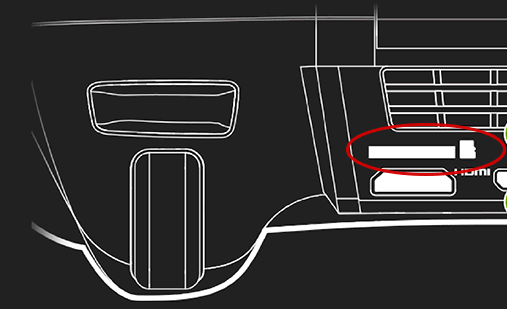
SD Cards are small memory cards that you can read, write, and delete data on. They are available in three sizes: standard SD, mini SD, and micro SD (or microSD). SHIELD has a slot on the back of the device for a microSD card. The card can be loaded with music, pictures, and videos as well as game and app files to free-up space on the SHIELD drive.
 Beginning with KitKat,
Google has changed the way the third party applications can interact with
external storage, such as an SD card. This may affect Apps that
were installed on SHIELD prior to the KitKat upgrade. For more informationk
go here.
Beginning with KitKat,
Google has changed the way the third party applications can interact with
external storage, such as an SD card. This may affect Apps that
were installed on SHIELD prior to the KitKat upgrade. For more informationk
go here.
32GB (or less) microSD cards - SHIELD portable supports FAT32 data format. Most microSD cards that are 32 GB or less are already formatted as FAT32. If the memory card is not formatted, format to FAT32, using your PC or Mac computer.
64GB (or higher) microSD cards - Android does not support the exFAT file system out-of-the-box. Because the standard FAT32 file system does NOT support partitions greater than 32 GB by default, 64 GB cards come pre-formatted as exFAT. If you want to use a 64 GB microSD with SHIELD portable, it has to be converted to a file system format that is supported by stock Android, which in this case is NTFS. Format the 64 GB microSD card to NTFS using your PC or Mac computer.
To access the micro SD card on your SHIELD, go to Settings > Storage and scroll down to SD CARD.
Games and Apps
Go to Settings > Apps
Select an App/Game to be moved
Select Move to SD card
Select OK to move the game/app.
The ability to move data
to the SD card is dependent on the selected app or game. Only apps/games
that the developers have opted in as moveable
to external storage can be moved.