 Android games (when optimized),
applications, the menu, and web browsing play at native 1080p at up to
60 frames per second (some Android games are not optimized for 1080p @
60fps playback).
Android games (when optimized),
applications, the menu, and web browsing play at native 1080p at up to
60 frames per second (some Android games are not optimized for 1080p @
60fps playback).Console Mode transforms your SHIELD portable into a full living room gaming and entertainment experience on your big-screen TV. Play Android games, browse the web and watch your favorite movies. Console Mode has been optimized to work and play with the NVIDIA SHIELD controller.
Android games (when optimized),
applications, the menu, and web browsing play at native 1080p at up to
60 frames per second (some Android games are not optimized for 1080p @
60fps playback).
Cable Mini-HDMI to HDMI cable
Controller Bluetooth wireless controller or mouse and keyboard. NVIDIA recommends the NVIDIA SHIELD controller.
HDTV An HDTV with HDMI support. Use Gaming mode for the HDTV (if supported) to reduce input latency.
NVIDIA recommends the SHIELD controller. It is a full-sized controller designed to work with the SHIELD portable.
Verify that your SHIELD portable has Wi-Fi turned on. The device does not have to connect to a network, but Wi-Fi must be turned on.
Open
the SHIELD Controller app  on your SHIELD portable.
Tap
the NVIDIA button on
the wireless controller. The NVIDIA button flashes when the
controller is in connecting mode. If the NVIDIA button is not
flashing, hold the NVIDIA button until it starts flashing, and then
release.
on
the wireless controller. The NVIDIA button flashes when the
controller is in connecting mode. If the NVIDIA button is not
flashing, hold the NVIDIA button until it starts flashing, and then
release.
When the controller is connected, the Quick Quide opens and a controller icon shows in the status bar on your SHIELD device. This icon indicates that the controller is on and connected.
Optional: You can connect up to three more SHIELD Wireless Controllers to your SHIELD portable device. Repeat Steps 1 through 4 to connect each additional controller.
Use the following procedure to set-up Console Mode on your SHIELD portable:
Launch
Console Mode by selecting the Console
Mode icon from Apps.
Mirror Mode displays the same image on the SHIELD portable screen and the HDTV screen. In Console Mode, the SHIELD portable screen is blank and you can close the lid. Note that Console Mode automatically launches when the SHIELD portable is connected to a HDTV.
On the HDTV when the SHIELD portable is connected, the Console Mode prompt displays regardless if the lid on SHIELD is open or closed. If the lid is closed and SHIELD is in sleep mode, connecting the Mini-HDMI cable wakes it from sleep. If you remove the Mini-HDMI cable from SHIELD, you are prompted to exit Console Mode.
Using the SHIELD Controller, you can do anything that you would normally do on your SHIELD portable on your HDTV.
In the following example, the SHIELD portable is in Console Mode.
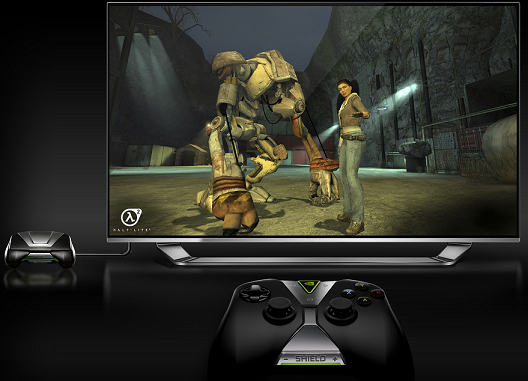
HDTV screen display with NVIDIA SHIELD portable in Console Mode and an attached NVIDIA SHIELD controller.
There are many Bluetooth keyboards and mice that are available in the marketplace. The SHIELD portable is an Android-powered device and connects natively with peripherals that are Bluetooth-enabled without a required USB dongle.
To enable a mouse and keyboard, go to Settings Bluetooth on
you SHIELD portable and connect the Bluetooth mouse and keyboard.
Bluetooth on
you SHIELD portable and connect the Bluetooth mouse and keyboard.